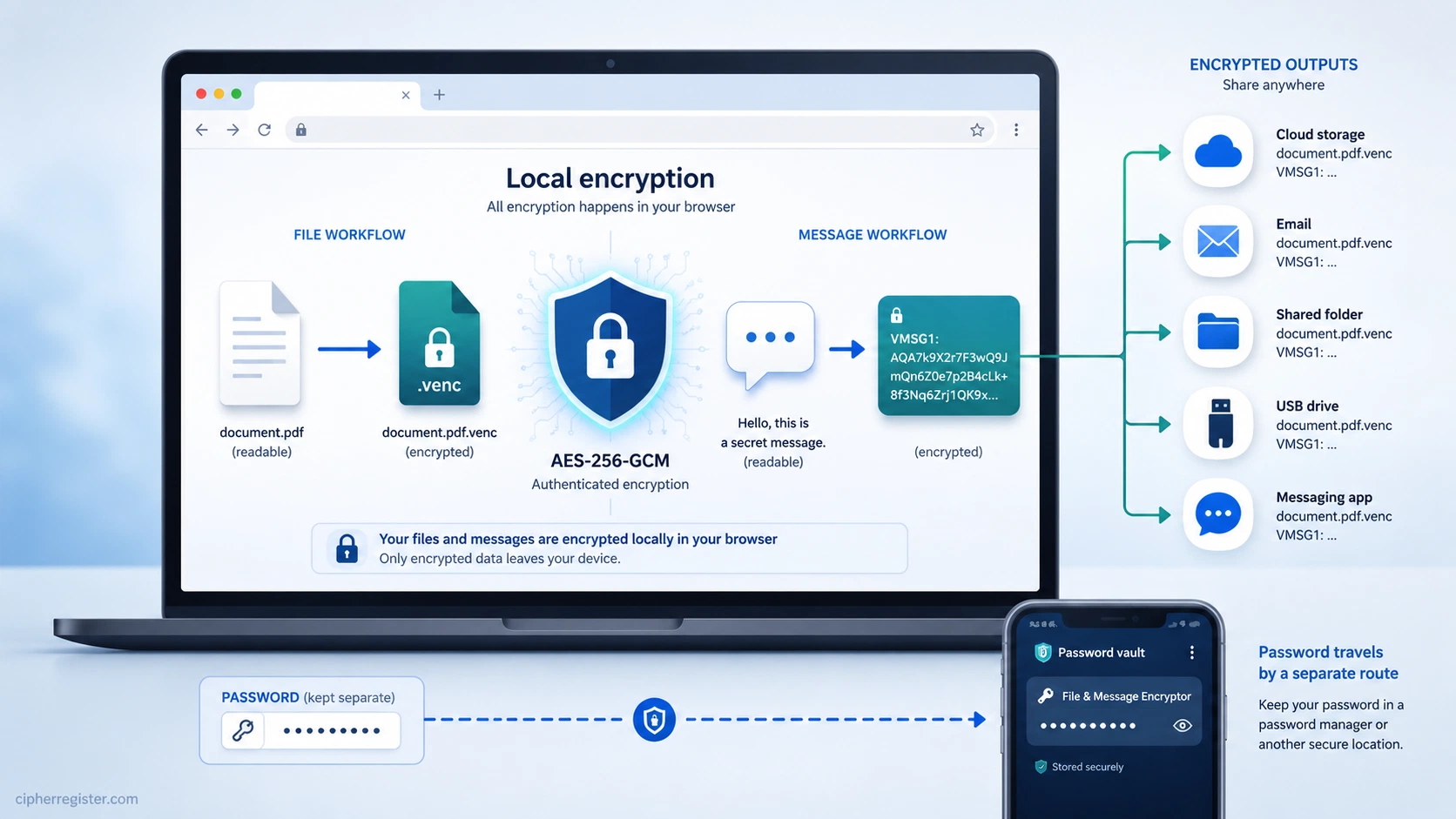
Private information often has to pass through systems you do not fully control.
A document may need to be stored in a cloud account, copied onto a USB drive, attached to an email, placed inside a shared folder, or sent through a messaging service. Those services may protect data while it is travelling or while it is stored, but that is not always the same as encrypting the content yourself before handing it over.
The CipherRegister File & Message Encryptor adds that extra layer.
It encrypts files and private messages locally in your browser. The selected content is not uploaded by the tool, and the password is not sent elsewhere. The result is a separate encrypted file or a portable block of encrypted text that can be stored or transferred using ordinary services.
This guide explains how to use every part of the tool, when local encryption can be valuable, how strong its protection is, how to share the results safely, and where that protection ends.
The most important rule is simple: keep the encrypted content and its password separate. Anyone who obtains both can decrypt the content.
The Tool at a Glance
| Feature | File & Message Encryptor |
|---|---|
| File encryption | Creates a separate .venc encrypted copy |
| File decryption | Restores the original file using the correct password |
| Message encryption | Produces portable text beginning with VMSG1: |
| Message decryption | Restores the authenticated plaintext |
| Encryption | AES-256-GCM authenticated encryption |
| Password processing | PBKDF2-HMAC-SHA-256 with 600,000 iterations |
| Randomness | Fresh cryptographic salt and nonce material for every encryption |
| File processing | 4 MiB authenticated chunks |
| Message limit | 8 MiB of UTF-8 text |
| Generated password | 30 cryptographically random characters |
| Uploads | None—the selected content is processed locally |
| Accounts | None |
| Password recovery | None |
| Original file | Read only and never intentionally overwritten |
Why Might You Need Local Encryption?
Many services already use encryption, but the word encryption can describe several different arrangements.
A website may encrypt the connection between your browser and its server. A storage provider may encrypt disks inside its data centre. A messaging platform may offer end-to-end encryption between participants. These are valuable protections, but they do not all give you the same control.
Locally encrypting a file before uploading or sending it means that the service receives an encrypted object instead of the readable original. The password needed to reverse that encryption remains under your control.
This can be useful when:
- placing a private document in cloud storage;
- emailing a sensitive attachment;
- transferring information through a shared folder;
- carrying confidential files on removable storage;
- creating an encrypted backup;
- sending private text through a service you do not want to trust with the plaintext;
- separating protected content from the password used to unlock it; or
- adding an independent layer before using another transport system.
For example, suppose you need to send a copy of a personal record by email. Instead of attaching the readable document, you can encrypt it first and attach the resulting .venc file. The recipient receives the password through a different channel and restores the document locally.
The email provider still sees that a file was sent, when it was sent, who exchanged it, and approximately how large it is. It does not, however, receive the original file contents through this tool.
What the Tool Does—and What It Does Not Do
The File & Message Encryptor provides three modes:
| Mode | Purpose |
|---|---|
| Encrypt file | Protect a file and create a separate .venc copy |
| Decrypt file | Restore a .venc file using its original password |
| Messages | Encrypt or decrypt portable text |
The tool is designed to provide:
- confidentiality for the protected content;
- detection of incorrect passwords;
- detection of altered or corrupted encrypted data;
- local processing without uploading the selected material;
- fresh cryptographic randomness for every encryption; and
- straightforward transfer using ordinary files or text.
It does not provide:
- password recovery;
- identity verification;
- protection after plaintext has been decrypted;
- protection from malware or a compromised device;
- anonymity or concealment of communication metadata;
- automatic password delivery;
- automatic cloud storage; or
- protection when the encrypted content and password are captured together.
Before You Begin
Check four things before encrypting important information.
Use a Trusted Device
Encryption cannot protect plaintext from software that can already read your screen, keyboard, clipboard, files, or browser memory. Avoid handling sensitive material on public computers, shared devices, or systems you suspect may be compromised.
Use a Current Browser
The tool relies on the browser's Web Crypto capabilities. A current browser provides the cryptographic functions and secure randomness needed by the tool.
If those functions are unavailable or the built-in cryptographic check fails, the encryption controls are disabled and the page displays an error.
Decide How the Password Will Be Stored
There is no password recovery.
Before encrypting something important, decide where the password will be kept. A reputable password manager is normally safer than relying on memory, leaving the password in a chat history, or saving it beside the encrypted file.
Decide How the Password Will Be Transferred
If another person needs to decrypt the result, arrange a separate route for the password.
For example:
Encrypted file: email attachment
Password: telephone call
or:
Encrypted message: messaging service
Password: password manager sharing feature
Using separate channels reduces the chance that one intercepted account or conversation exposes everything. It is not an absolute guarantee, particularly if the same compromised device or account controls both channels.
How to Encrypt a File
1. Select Encrypt File
Choose Encrypt file from the three mode buttons.
The page displays the file selector, password fields, protection summary, and encryption controls.
2. Choose the File
Press Choose or drop a file, then select the file you want to protect.
The tool accepts an individual file rather than an entire folder. To encrypt several files together, first place them inside an archive such as a ZIP file, then encrypt that archive.
The original file is read by the browser but is not intentionally modified or overwritten.
3. Create a Strong Password
You can enter your own password or press Generate strong password.
A manually chosen password must contain at least 12 characters. Longer is usually better, particularly when the password is made from memorable words rather than randomly selected characters.
The generator creates a 30-character password using cryptographically secure browser randomness. Its character selection avoids the small statistical bias that can arise from naive random-number conversion.
A generated password will be difficult to memorise, so save it securely before continuing.
4. Confirm the Password
Enter the same password in the confirmation field.
This second entry prevents a typing mistake from creating an encrypted file that you cannot later recover. The tool will not proceed if the two entries differ.
Use Show temporarily if you need to inspect either entry. Hide it again when other people may be able to see your screen.
5. Store the Password
Before encrypting, copy the password into its intended secure location.
Do not assume that it will remain available after the page is refreshed, closed, or reset. The tool does not store passwords for later recovery.
6. Encrypt and Save the Copy
Press Encrypt and save copy.
The browser derives an encryption key from the password, creates fresh cryptographic randomness, and processes the file in authenticated chunks.
Depending on the browser, one of two save methods is used:
- supporting browsers can progressively write the encrypted result to a file you choose;
- other browsers assemble the completed output in browser memory and then download it.
The resulting filename normally ends with:
.venc
For example:
financial-records.pdf.venc
The readable original remains separate from the encrypted copy.
7. Verify the Result
For important material, perform a test decryption before relying on the encrypted copy.
Confirm that:
- the
.vencfile was created; - the stored password unlocks it;
- the restored file opens correctly; and
- the restored content matches the original.
Do not delete the only readable original until you have confirmed that the encrypted copy and password both work.
Understanding the .venc File
A .venc file is an encrypted container created by the tool.
It contains:
- the information needed to derive the key from the password;
- fresh salt and nonce material;
- encrypted file metadata;
- authenticated encrypted data chunks; and
- authentication tags used to detect incorrect or altered data.
The password itself is not stored inside the file.
The embedded original filename, media type, size, and modification date are encrypted and authenticated. However, the default name of the .venc output is based on the original filename. If the filename itself reveals sensitive information, rename the encrypted file after it has been created.
For example:
medical-diagnosis.pdf.venc
could be renamed to:
document-01.venc
Renaming the encrypted container does not change the protected original filename stored inside it. The tool can restore the original name after successful decryption.
The encrypted file's overall size may also reveal an approximation of the original size. Encryption protects content; it does not make the existence or approximate quantity of data invisible.
How to Decrypt a File
1. Select Decrypt File
Choose Decrypt file.
2. Select the .venc File
Choose the encrypted file you want to restore.
The tool checks that the file has a supported header and a valid encrypted-file structure.
3. Enter the Original Password
Enter the exact password used during encryption.
Passwords are case-sensitive. Spaces, punctuation, and every other character must match the original entry.
4. Decrypt and Restore
Press Decrypt and restore file.
The tool derives the key, authenticates the encrypted metadata, and then processes each encrypted chunk.
If successful, the browser saves a restored copy using the protected original filename and media type where possible.
The .venc input remains unchanged.
5. Check the Restored File
Open the restored file and confirm that it is complete.
If the password is wrong or the encrypted file has been altered, corrupted, or truncated, authentication fails and the operation is rejected.
Why a Wrong Password and Damaged Data Produce Similar Errors
AES-GCM authentication verifies that the encrypted data matches the key and authentication information used when it was created.
Authentication can fail because:
- the password is wrong;
- the encrypted file was changed;
- part of the file is missing;
- the file was corrupted during storage or transfer; or
- the input is not a valid file produced by the tool.
The tool cannot always determine which cause is responsible. From the cryptographic operation's perspective, the authentication evidence is simply invalid.
This behaviour is intentional. The tool does not attempt to produce plausible-looking plaintext from unauthenticated data.
How to Encrypt a Private Message
Choose Messages when you want to protect text rather than create an encrypted file.
1. Enter the Message
Type or paste the plaintext into Message or encrypted text.
The text can include ordinary Unicode characters, punctuation, and line breaks.
Messages are limited to 8 MiB of UTF-8 data. The message mode is intended for text, notes, and shorter passages. Use file encryption for large documents or other substantial content.
2. Enter or Generate a Password
Enter a password of at least 12 characters, or use Generate strong password.
Save the password before encrypting.
3. Encrypt the Message
Press Encrypt message.
The result appears as portable text beginning with:
VMSG1:
A shortened example would resemble:
VMSG1:AbCdEf1234...
The text after the prefix is a Base64URL representation of the authenticated encrypted package. It is designed to survive copying through email, notes, and messaging applications.
4. Copy the Result
Press Copy result, then paste the complete VMSG1: text into the service you want to use.
Do not omit the prefix or remove characters from the encrypted text.
5. Send the Password Separately
The encrypted message is only useful to the recipient if they also possess the password.
Send the password through a separate trusted route. Do not paste it immediately beside the encrypted text.
How to Decrypt a Private Message
The recipient should:
- Open the File & Message Encryptor.
- Select Messages.
- Paste the complete
VMSG1:text into the input box. - Enter the exact password.
- Press Decrypt message.
- Read the authenticated plaintext in the result box.
If the password is incorrect or the encrypted text has changed, the tool rejects the message.
Move Result to Input
Move result to input transfers the current output into the input area.
This is useful for checking a newly encrypted message:
- Encrypt the plaintext.
- Move the encrypted result into the input.
- Press Decrypt message.
- Confirm that the original text returns.
It can also make repeated operations more convenient, but take care not to confuse plaintext with ciphertext.
Clear
Clear removes the current message content and password from the tool.
Use it when you have finished, particularly on a device shared with other people. Remember that copies may still exist in clipboard history, browser memory, screenshots, or other applications where you pasted the content.
Why Authenticated Encryption Matters
Encryption is commonly described as making information unreadable, but confidentiality is only part of the problem.
An attacker may not be able to read encrypted data yet may still try to alter it. A damaged download, failed transfer, or storage fault can also change bytes accidentally.
The tool uses AES-256-GCM, an authenticated-encryption mode that combines two protections:
- confidentiality, which conceals the plaintext; and
- integrity authentication, which detects changes to the encrypted package.
This means the tool does not simply decrypt whatever data it receives and hope that the result is meaningful. It verifies authentication evidence created during encryption.
For files, every data chunk is encrypted and authenticated. Important structural information is also included in the authenticated calculation, helping the tool detect reordered, substituted, incomplete, or otherwise invalid records.
For messages, the encrypted text and its format information are authenticated together.
Authentication does not prove who created the message. Anyone with the password can produce a valid encrypted result. The tool protects data integrity under the shared password; it does not provide a digital signature or verified sender identity.
How Strong Is the Encryption?
The tool uses AES-256-GCM. AES is the Advanced Encryption Standard, and the number 256 describes the size of its key.
A 256-bit key has:
$$ 2^{256} $$
possible values. Written as an ordinary number, that is approximately:
$$ 1.16\times10^{77} $$
possible keys.
This number is so large that ordinary comparisons quickly become unrealistic.
Imagine a machine capable of testing one trillion keys every second without stopping. At that speed, checking the complete AES-256 keyspace would take approximately:
$$ 3.7\times10^{57}\text{ years}. $$
On average, the correct key would be found halfway through, but halving a number of that size makes no practical difference.
Even an imaginary network containing one billion machines, with every machine testing one trillion keys per second, would still need approximately:
$$ 3.7\times10^{48}\text{ years} $$
to exhaust the keyspace.
These figures are deliberately generous to the attacker. They ignore the enormous engineering, energy, storage, and coordination problems involved in constructing such machinery.
AES is a recognised international standard with 128-bit, 192-bit, and 256-bit key variants. AES-256-GCM combines the 256-bit cipher with authenticated encryption, allowing the recipient to detect altered or invalid ciphertext as well as recover the plaintext.
The Password Is the More Realistic Target
The enormous AES keyspace does not mean that every password automatically provides 256 bits of protection.
The tool derives its AES key from the password. An attacker would normally try likely passwords rather than search every possible AES key.
A password such as:
summer2026
occupies only one position in the AES keyspace, but it may appear near the beginning of an attacker's dictionary. Adding a capital letter or predictable symbol does not necessarily make it strong:
Summer2026!
This is why a weak human-created password can undermine otherwise formidable encryption.
To make guessing more expensive, the tool processes the password through PBKDF2-HMAC-SHA-256 with:
600,000 iterations
Every password guess must be passed through that repeated calculation before the attacker can test whether it is correct. A fresh 128-bit salt is also generated for every encryption, preventing precomputed tables from being reused and ensuring that the same password derives different keys for different encrypted packages.
The 600,000-iteration setting follows current OWASP guidance for PBKDF2-HMAC-SHA-256.
PBKDF2 slows guessing, but it cannot rescue a short or predictable password. The safest option is therefore the built-in password generator.
How Strong Is the Generated Password?
The generator creates a 30-character password from an alphabet containing 69 letters, numbers, and symbols.
That produces:
$$ 69^{30} $$
possible passwords, or approximately:
$$ 1.46\times10^{55}. $$
This corresponds to slightly more than:
$$ 183\text{ bits} $$
of password entropy, provided the password is generated uniformly and remains secret.
Even if an attacker could test one trillion candidate passwords per second—and this calculation unrealistically ignores the additional cost imposed by PBKDF2—checking the complete generated-password space would take approximately:
$$ 4.6\times10^{35}\text{ years}. $$
A billion such machines working together would still require approximately:
$$ 4.6\times10^{26}\text{ years}. $$
The generated password therefore does not supply the full 256 bits represented by AES-256, but its approximately 183-bit search space is still far beyond practical exhaustive attack.
The generator uses cryptographically secure browser randomness and rejection sampling. Rejection sampling prevents some characters from being selected slightly more often than others, ensuring that every permitted character has an equal chance of appearing.
What About Quantum Computers?
Quantum computers do not make AES-256 suddenly easy to break.
Grover's algorithm can theoretically reduce a brute-force AES-256 search from approximately $2^{256}$ operations to approximately $2^{128}$ quantum operations. That is a major mathematical reduction, but $2^{128}$ remains an enormous search space, and a practical attack would also require large fault-tolerant quantum hardware, error correction, and an extremely long sequence of operations.
NIST's current guidance says that applications can continue using AES with 128-bit, 192-bit, or 256-bit keys. It also notes that the practical advantage of Grover-style attacks may be much smaller than the simplified theoretical calculation suggests.
What Is Most Likely to Go Wrong?
With a securely generated 30-character password, a trusted device, and correct implementation, directly guessing the password or AES key is, for practical purposes, infeasible with foreseeable technology.
The realistic dangers are elsewhere:
- choosing a short or predictable password;
- sending the password beside the encrypted content;
- losing the password;
- exposing it through clipboard history;
- using an infected or untrusted device;
- leaving an unencrypted copy accessible;
- revealing the password to the wrong recipient; or
- allowing somebody to view the plaintext after decryption.
The realistic way to defeat strong encryption is usually not to crack AES. It is to obtain the password, compromise one of the devices, or find an unprotected copy of the original content.
The mathematics makes direct exhaustive cracking extraordinarily unlikely. Good operational habits ensure that an attacker cannot simply go around that mathematics.
How the Password Becomes an Encryption Key
AES requires a cryptographic key, but users normally work with passwords and passphrases.
The tool converts the password into a 256-bit encryption key using PBKDF2-HMAC-SHA-256 with 600,000 iterations and a fresh random 128-bit salt.
The salt is not a second password and does not need to remain secret. Its purpose is to ensure that encrypting with the same password on different occasions produces independently derived keys.
The repeated PBKDF2 calculation makes each password guess more expensive than a single hash operation. This slows password-guessing attacks, but it does not turn a weak password into a strong one.
For example, a short predictable password such as:
password1234
remains a poor choice, even when processed through PBKDF2.
A long unique passphrase or the built-in generated password is substantially safer.
Why Every Encryption Produces a Different Result
Encrypting the same content twice with the same password should not produce identical encrypted output.
The tool creates fresh random values for every operation:
- a new salt changes the password-derived key;
- a new message IV changes message encryption; and
- a new file nonce prefix provides unique nonces for authenticated file chunks.
As a result, two encrypted copies of the same input normally look unrelated.
This is an important property. Repeated encryption should not reveal that two ciphertexts were created from identical plaintext merely because the same password was used.
You should still use unique passwords whenever practical. Fresh salts improve password-based encryption, but reusing one password across many places increases the consequences if that password is exposed.
The Benefits of Local Processing
Your Selected Content Is Not Uploaded
The tool reads the chosen file or message inside the browser. It does not need to send that content to an encryption server.
This reduces the number of systems that receive the plaintext.
You Can Encrypt Before Using Another Service
A .venc file can be uploaded, attached, or copied like an ordinary file. The storage or transport service receives the encrypted container rather than the original content.
No Account Is Required
The tool does not require registration, a subscription, or an online vault account.
The Original Remains Available
Encryption creates a separate result. The original file is not intentionally overwritten, allowing you to verify the encrypted copy before changing or deleting anything.
Tampering Is Detected
Authenticated encryption detects an incorrect password and changes to the protected data instead of silently returning unreliable plaintext.
The Same Interface Handles Files and Messages
You can create encrypted attachments and portable encrypted text without learning two unrelated workflows.
What Local Encryption Cannot Protect
Local processing is valuable, but it is not a protective bubble around the entire device.
The tool cannot protect you from:
- malware that reads files before encryption;
- keyloggers that capture the password;
- malicious browser extensions;
- screen recording or shoulder surfing;
- clipboard-history tools;
- someone using the device while the plaintext is open;
- insecure password storage;
- a recipient who deliberately shares the decrypted content; or
- an attacker who obtains both the ciphertext and password.
It also does not hide communication metadata. A storage or messaging service may still learn:
- who communicated;
- when the transfer occurred;
- the approximate amount of data;
- the encrypted format being used; and
- the name of the encrypted file unless you rename it.
Encryption protects content. It does not automatically provide anonymity, identity verification, or endpoint security.
Choosing and Managing the Password
The password is the most important part of the workflow that remains under your control.
Prefer the Generated Password When Practical
The built-in generator creates 30 characters using the browser's secure random source. This is preferable to a short human-created password when the result can be stored in a password manager.
Use a Long Passphrase When Memorisation Is Necessary
A passphrase made from several unrelated words is generally easier to remember and type accurately than a short complex password.
Avoid:
- quotations;
- song lyrics;
- names and dates;
- keyboard patterns;
- common substitutions such as
P@ssw0rd; and - passwords already used for other accounts.
Keep It Separate from the Encrypted Content
Do not store:
private-document.venc
private-document-password.txt
inside the same unprotected folder and assume the document is secure.
Anyone who copies the folder obtains both pieces.
Do Not Rely on Recovery
There is no administrator, reset email, or recovery key. If the password is lost, the tool cannot restore the protected content.
That is a security property, but it also creates responsibility.
A Sensible Sharing Workflow
For an encrypted file:
- Encrypt the original locally.
- Save the
.venccopy. - Store the password securely.
- Perform a test decryption.
- Send or upload the
.vencfile. - Transfer the password separately.
- Ask the recipient to confirm successful restoration.
- Remove unnecessary plaintext or clipboard copies according to your needs.
For an encrypted message:
- Write the plaintext.
- Generate or enter a strong password.
- Encrypt the message.
- Copy the complete
VMSG1:result. - Send the encrypted text.
- Send the password separately.
- Clear sensitive fields and clipboard history when appropriate.
Common Mistakes to Avoid
Sending the Password Beside the Encrypted Content
This defeats much of the benefit of separating encryption from transport.
Losing the Password
Without the exact password, there is no recovery route.
Deleting the Original Before Testing
Always confirm that the .venc file can be decrypted before relying on it as the only copy.
Editing Encrypted Text
A missing or changed character can make a VMSG1: message fail authentication.
Copy the complete result exactly.
Renaming Away the .venc Extension
A renamed encrypted file may still contain valid data, but keeping .venc makes its purpose easier to recognise and helps users choose the correct mode.
You may safely change the descriptive part of the filename while retaining the extension.
Assuming Local Encryption Protects an Infected Device
Encryption cannot secure plaintext that malware can already observe.
Using Message Mode for Very Large Content
The message mode is limited to 8 MiB and represents encrypted data as text. Use file encryption for large documents and binary content.
Treating Authentication as Proof of Identity
Successful decryption shows that the encrypted package matches the password and has not been altered. It does not prove which person created it.
Browser Behaviour and Large Files
Files are processed in 4 MiB chunks so the tool does not need to encrypt an entire file in one cryptographic operation.
Some browsers can progressively write the encrypted or restored result directly to a selected file. This is the most efficient route for large files.
Where direct writing is unavailable, the browser assembles the completed result in memory before triggering a download. Very large files may therefore require substantial memory and may be limited by the browser or device.
For large or especially important files:
- close unnecessary browser tabs;
- make sure sufficient storage is available;
- keep the device connected to power;
- avoid interrupting the page during processing; and
- verify the completed result before deleting anything.
Troubleshooting
“Use at Least 12 Password Characters”
The encryption password is too short. Enter a longer password or use Generate strong password.
“The Two Password Entries Do Not Match”
The password and confirmation fields differ. Check capitalisation, spaces, and punctuation.
“The Password Is Wrong, or the Encrypted File Was Altered or Corrupted”
Possible causes include:
- an incorrect password;
- a damaged file;
- an incomplete transfer;
- a modified encrypted container; or
- an unsupported or invalid input file.
Confirm the password and obtain a fresh copy of the encrypted file if necessary.
“Encrypted Messages Must Begin with VMSG1:”
The input is not recognised as a message created by this tool. Make sure the entire encrypted result was copied, including the prefix.
The Browser Does Not Ask Where to Save the Result
The browser may be using its normal download system instead of direct file writing. Check the browser's downloads area.
A Large File Causes the Page or Browser to Struggle
The browser may be assembling the output in memory. Try a current desktop browser with direct file-writing support, or use established desktop encryption software for very large files.
The Recipient Cannot Decrypt the Result
Check that the recipient has:
- the complete
.vencfile orVMSG1:text; - the exact password;
- selected the correct mode;
- used a current browser; and
- received an unmodified encrypted result.
When This Tool Is a Good Fit
The File & Message Encryptor is well suited to:
- personal encrypted backups;
- adding protection before cloud storage;
- encrypting individual email attachments;
- transferring a private document through an ordinary sharing service;
- protecting short private notes;
- learning a careful password-and-ciphertext sharing workflow; and
- situations where installing desktop software is impractical.
When to Prefer Established Audited Software
The tool uses strong, modern cryptographic building blocks supplied by the browser. However, the application and its custom .venc and VMSG1: formats have not undergone an independent professional security audit.
Prefer mature, independently audited encryption and key-management software when dealing with:
- exceptionally sensitive material;
- regulated personal data;
- high-value organisational secrets;
- long-term archival requirements;
- formal compliance obligations;
- hostile or highly capable adversaries;
- large-scale collaboration; or
- situations requiring recovery, access revocation, or verified identities.
This distinction is important. Using AES-256-GCM does not by itself certify an entire application as secure under every threat. Security also depends on implementation, passwords, devices, operating procedures, and the people handling the result.
Frequently Asked Questions
Does the Tool Upload My File or Message?
No. The selected content is processed locally by the tool in your browser.
The page and its ordinary website assets must still be loaded, but the file, message, and password are not sent to an encryption service by this tool.
Can CipherRegister Recover My Password?
No. The tool does not receive or store the password and has no recovery mechanism.
Can I Use the Same Password More Than Once?
Fresh salt and nonce material is generated for each encryption, but using a unique password for each important package is still safer. Password reuse increases the effect of accidental disclosure.
Can I Send the .venc File Through Email or Cloud Storage?
Yes. It is an ordinary encrypted file and can be transferred through normal services.
Send the password separately.
Can I Rename a .venc File?
Yes. Keep the .venc extension so its purpose remains clear.
The protected original filename is stored inside the encrypted metadata and can be restored after successful decryption.
Can I Encrypt a Folder?
The tool accepts one file at a time. Place the folder inside a ZIP or another archive first, then encrypt the archive.
Does Changing One Encrypted Character Really Matter?
Yes. Authenticated encryption is designed to detect changes. Editing, truncating, or corrupting the encrypted result can make decryption fail.
Does Successful Decryption Prove Who Sent the File?
No. It proves that the encrypted package is valid under the supplied password. It does not provide a digital signature or verified identity.
Is AES-256-GCM Strong Encryption?
AES-256-GCM is a modern, widely used authenticated-encryption construction. Exhaustive search of its complete keyspace is infeasible with foreseeable technology.
In this tool the AES key is derived from a password, so the practical protection depends on that password. The built-in generated password provides an enormous search space; a short or predictable human password does not.
Could a Weak Password Be Guessed?
Yes. PBKDF2 makes each guess more expensive, but weak or predictable passwords can still be attacked. Use a long unique passphrase or the generated 30-character password.
Final Safety Checklist
Before relying on an encrypted result, confirm that:
- the device and browser are trusted;
- the password is long, unique, and stored securely;
- the encrypted output was created successfully;
- a test decryption restores the original content;
- the encrypted content and password will travel separately;
- the recipient knows which mode to use;
- unnecessary clipboard and plaintext copies are removed;
- the filename does not reveal sensitive information; and
- the tool is appropriate for the sensitivity and regulatory requirements involved.
A Useful Extra Layer of Control
The File & Message Encryptor is designed to solve a straightforward problem: protecting content before it passes through systems you may not want to trust with the readable original.
Its value comes from combining several practical qualities:
- local browser processing;
- no account or upload requirement;
- modern authenticated encryption;
- strong password generation;
- tamper detection;
- separate encrypted copies;
- portable file and message formats; and
- a clear workflow for recipients.
The tool cannot make an unsafe device trustworthy, recover a forgotten password, or prevent somebody from sharing plaintext after decryption. It cannot hide every piece of metadata surrounding a transfer.
What it can do is place the content itself under a password you control before that content leaves your hands.
Used with a strong password, a trusted device, a verified backup, and a separate password-sharing channel, that can be a valuable additional layer between private information and the many systems through which it has to travel.